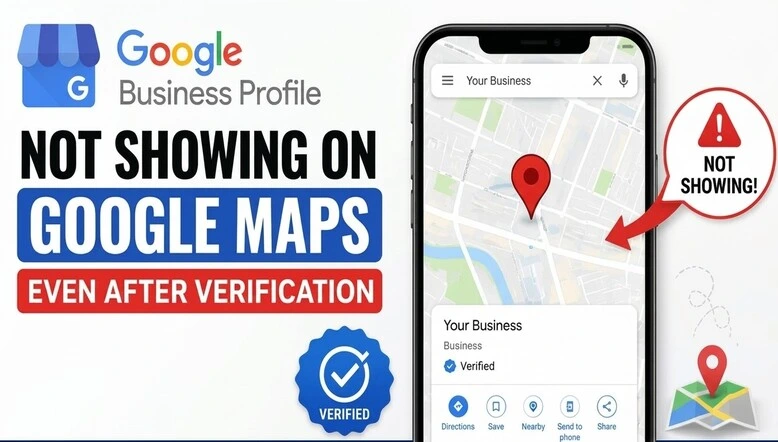
Having your Google Business Profile verified doesn’t guarantee your business will be listed on Google Maps. Many business owners finish the verification steps. Business owners still cannot locate your business when they search for your business name or the services your business offers.
There are reasons for this. Reasons can be visibility problems with your Google Business Profile, elements, duplicate listings, or restrictions set by Google policy.
Let us examine some reasons why your verified Google Business Profile may not appear on Google Maps and what steps you can take.
1. Business Profile Is Verified but Not Fully Visible
Verification shows that you are allowed to manage the Google Business Profile. It does not ensure that your business will stand out in Google Maps or local search results.
At times, a verified profile may need a little more time before it becomes visible across all Google services.
What you can do
- Check the status of your Google Business Profile in the dashboard.
- Fill out all the necessary business information.
- Check if Google has asked for any verification for the Google Business Profile.
- Find the business by using its name and address in Google.
2. Business Profile Is Not Ranking in Local Search
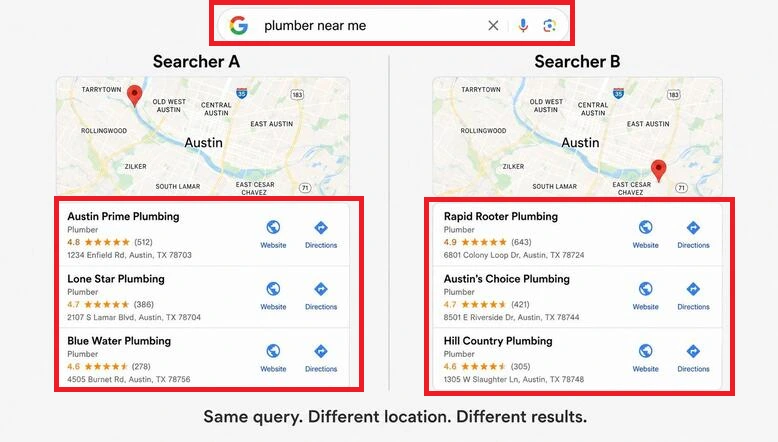
Your business could show up on Google Maps but still not appear when customers look for a service.
For example, a customer types “plumber near me,” yet your plumbing business does not show up in the results.
Google mainly looks at three factors when ranking businesses.
- Relevance – how closely your Google Business Profile matches the customer’s search.
- Distance – how far your business is from the person searching.
- Prominence – how well‑known your business is, based on reviews, links, and other online signals.
What you can do
- Choose the accurate primary and secondary business category for the Google Business Profile.
- Add services and descriptions to the Google Business Profile.
- Set the map pin location on Google Maps.
- Add business contact information to the Google Business Profile.
- Upload high‑quality geo‑tagged photos of your business, products, team, and services to the Google Business Profile.
- Respond to both negative customer reviews on the Google Business Profile.
- Publish posts on the Google Business Profile regularly.
- Keep the business hours and special hours on the Google Business Profile updated.
- Encourage customer reviews on the Google Business Profile.
- Ensure you create quality citations and web copy for your Google Business Profile.
3. Business Has Duplicate Listings
Sometimes a single business will have multiple Google Business Profiles with the same address. Someone creates a profile without using their own.
Duplicate profiles confuse customers and Google.
What you can do
- Search Google Maps for the business name and address.
- Check whether another profile already exists for the business.
- Avoid creating any profiles for the business.
- If a duplicate profile is found, follow Google Business Profile guidelines to request a merge or to remove the duplicate while keeping the verified Google Business Profile active.
4. Business Profile Has Been Restricted or Suspended
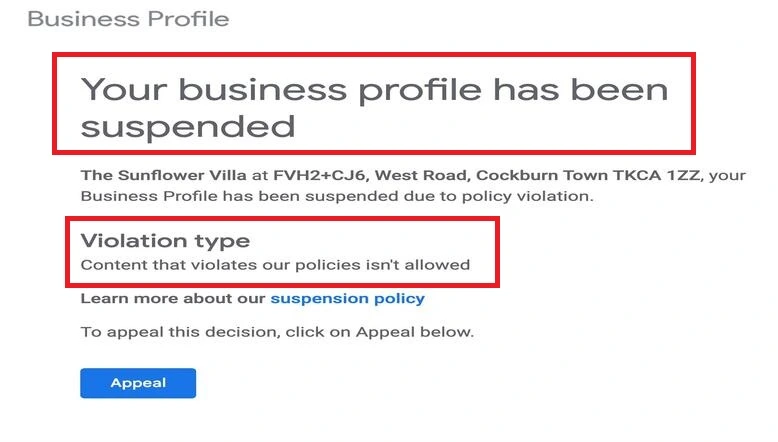
Your verified Google Business Profile may stop showing if Google finds that it violates Google Business Profile guidelines.
For example, using a business name, adding unnecessary keywords, providing misleading information, or creating ineligible business locations can cause problems.
What you can do
- Check the status of the Google Business Profile.
- If the Google Business Profile is suspended, you should submit an appeal through Google’s process, provide supporting business documents, and then wait for Google’s review.
5. Business Information Is Incomplete or Incorrect
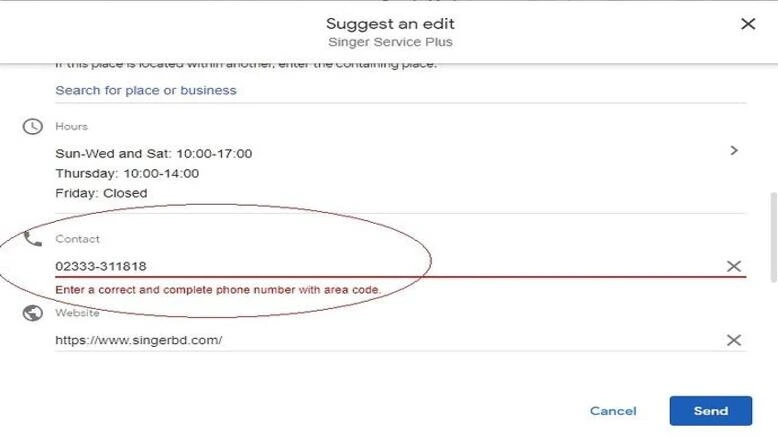
Old or omitted information can create confusion with Google about the Google Business Profile.
For example, outdated business hours, an old address, mismatched contact information, or an incorrect category can bring down search ranking.
What you can do
- Make sure you update the business name, address, and phone number on the Google Business Profile.
- Add your business hours to your Google Business Profile.
- Choose the business categories for the Google Business Profile.
- Add the website and relevant services to the Google Business Profile.
- Keep the information on the Google Business Profile in line with the website and other business listings.
Need help with Google Business Profile verification? Connect with our GBPSEO team and get support with profile verification, resolving verification issues, and getting your business profile verified successfully.